Plan ahead: calendar, budgets and spending reports
tip · The DueBright.com team · 2026-10-16
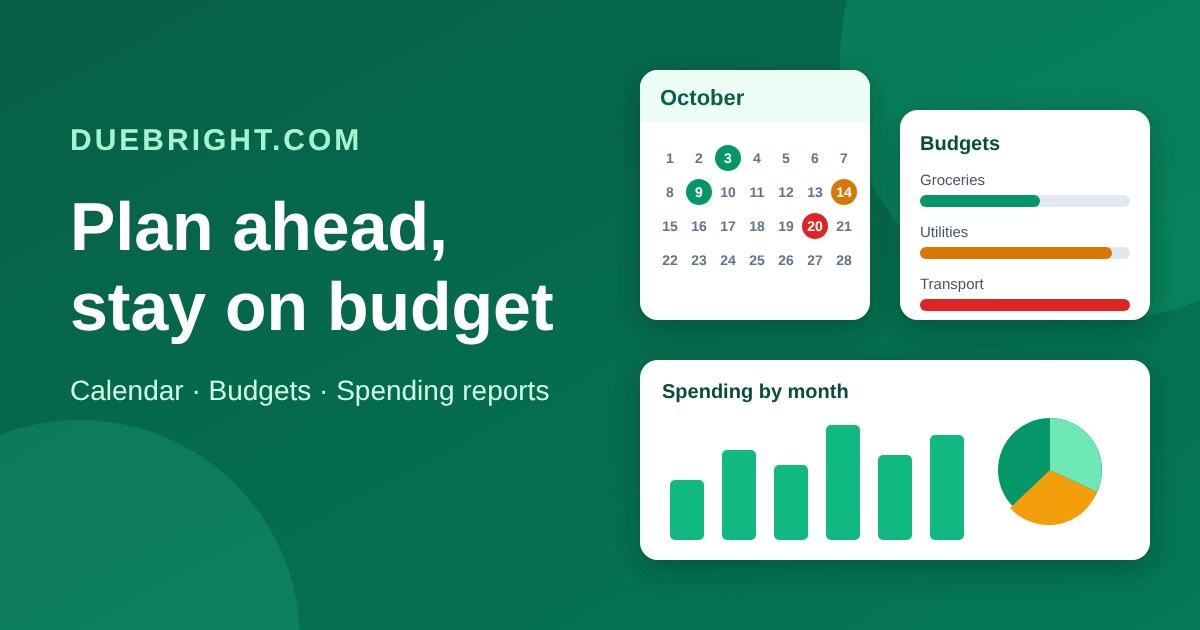
Paying bills on time is the start. DueBright.com also helps you see what is coming and where your money goes, so there are fewer surprises. Here are four features that help you plan ahead.
See the month on a calendar
On the Dashboard, the Monthly Bills section has a calendar above your bill list. Bills appear on their due dates: green means paid, red means overdue and amber means unpaid. Use the arrows to move between months, and look ahead to spot a week when several bills land together.
Keep categories on budget
Find the Budgets card on the Dashboard and choose Set budgets. Give categories such as Groceries or Utilities a monthly limit, and leave the rest empty. Each budget shows the month's bills in that category against its limit, how much is left and how much you have already paid.
A budget turns amber when 90% of it is used and red when it is over.
Budgets follow the month you are viewing, so you can check a busy month before it arrives.
They are saved to your account, so they are the same on every device.
Spot trends in your spending reports
Open Spending reports from your profile menu and choose a year. You will see each month's total due and total paid, with amounts broken down by category. Choose Print yearly summary to print the year or save it as a PDF from your browser's print window. Reports only read your existing bills, so nothing is changed.
On the Dashboard, the spending chart beside your bills shows how each month is split by category, which makes it easy to see where the money goes.
Every repeating bill in one place
Recurring bills, also in your profile menu, lists each bill that repeats with how often it repeats, its next due date and its average cost per month. You can edit a bill, stop it repeating or delete it from the same page. For bills you add often, save the details as a template and reuse them in one click.
Try it
Add your bills on the Dashboard and set how often each one repeats.
Set a few budgets for the categories you want to watch.
Check your spending report at the end of the month.
Step-by-step guides for each feature are in the Support centre, and you can contact us with questions or ideas.